Chrome extension
Copy a YouTube transcript in a form you can actually paste
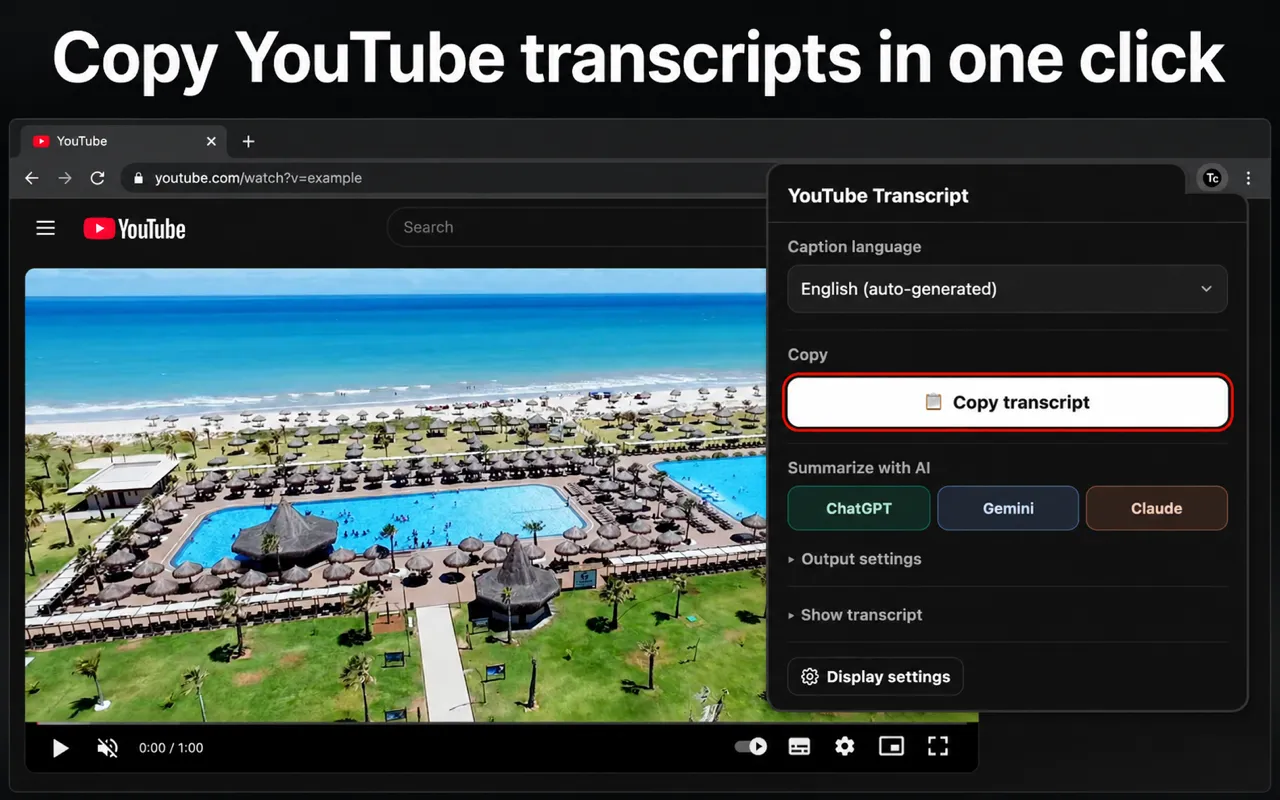
Pick a caption language and read the transcript before you take it. The title, URL, and timestamps come with the text, so you can find your way back to the video later.
Free, no account. Nothing leaves your device unless you send it yourself.
What it does
The title and URL come with the text
The video title, its URL, and timestamps go in ahead of the transcript. The link back to the video travels with the text. A week later it is still clear what the notes came from. Pick any caption language the video offers, auto-generated ones included. The panel shows the whole transcript first, so captions that cut off partway are caught before copying.
Build a prompt for ChatGPT or Claude
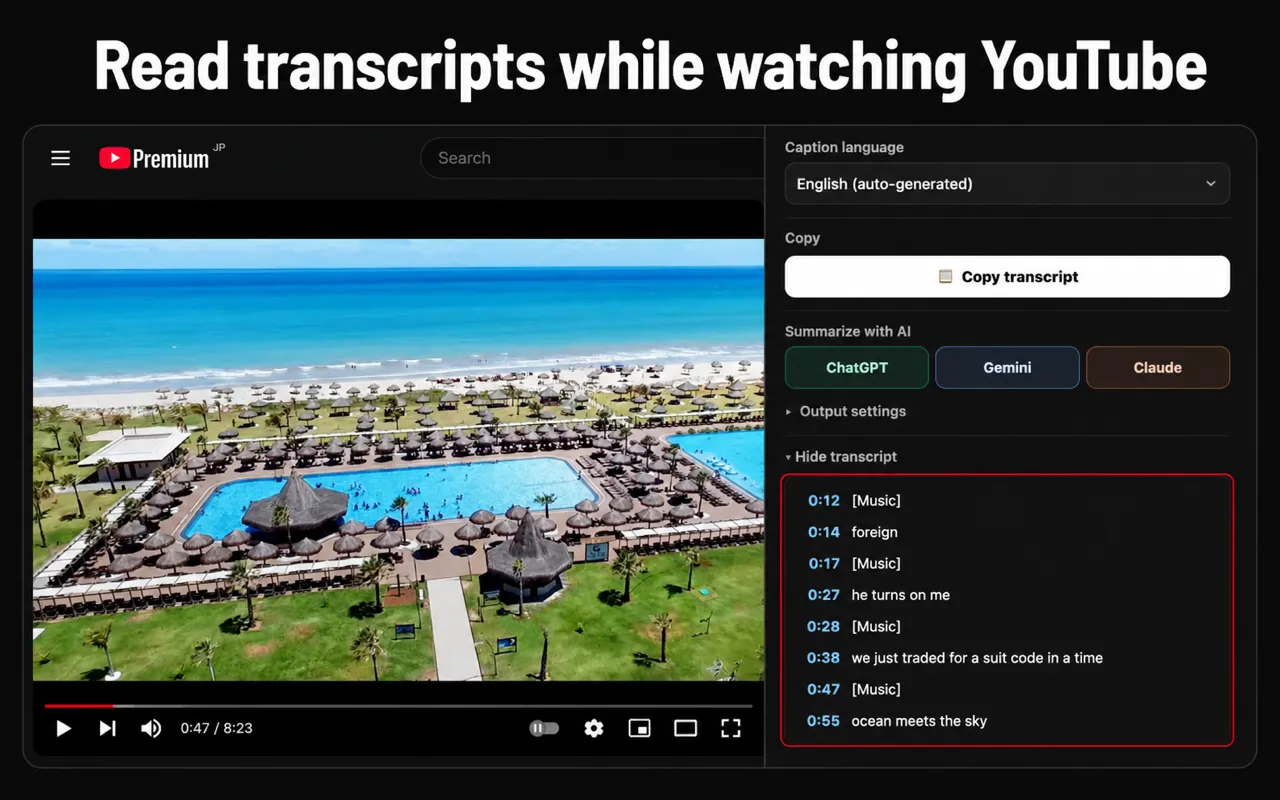
One click builds a summary prompt and opens ChatGPT, Gemini, or Claude. Those three are the services it supports. The extension stops once the text sits in the input field. Read it, edit it, then press send. The instruction and the output language can be rewritten, and both stay saved.
Work from the toolbar or the page
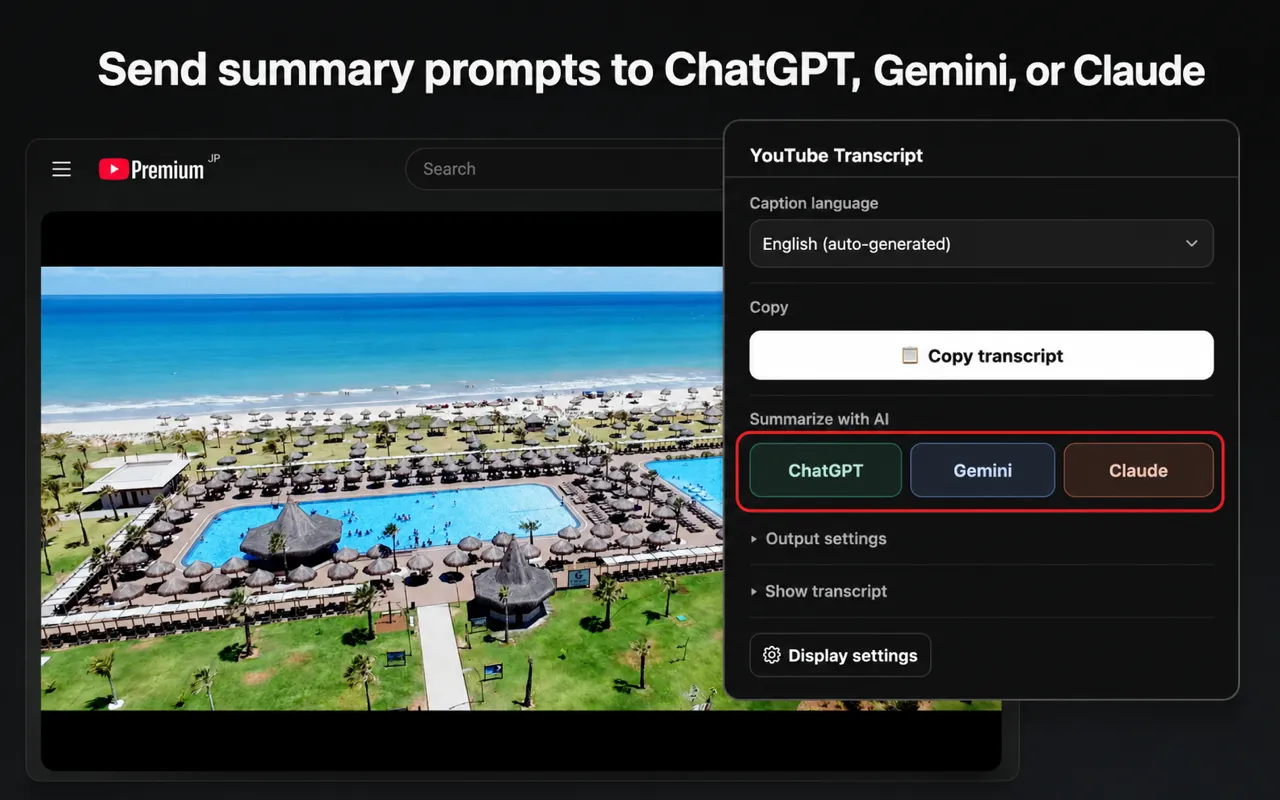
Use the popup or the panel embedded in YouTube. The extension interface is available in 52 languages.
How it works
- 1
Open a video that has captions
The extension reads what YouTube already holds for that video.
- 2
Pick the caption language
Open the toolbar icon or the in-page panel and choose from the tracks on offer.
- 3
Copy it, or send it to an AI
Take the text to your clipboard, or build a prompt and review it before sending.
Who it is for
- Students
- Read a lecture back as text instead of dragging the scrubber.
- Researchers
- Search a two-hour interview for the part that matters.
- Writers
- Move video content into notes and drafts. Timestamps let you cite the source.
- Professionals
- Turn a webinar into text you can search months later.
- Language learners
- Read the captions and the transcript side by side.
Privacy
The extension has no server. There is nowhere for your data to be sent.
- No analytics, no advertising SDKs, no tracking.
- Five settings are stored in Chrome local storage on the device. Nothing else is.
- Transcripts and video titles are not kept after you are done with them.
- Data reaches an AI service only when that button is pressed, and the prompt can be read first.
Before you install
- Transcripts depend on the captions YouTube provides. Videos without retrievable captions will not work.
- The extension does not summarize videos itself. That happens in the AI service you choose.
- Summary quality depends on that service and on your prompt.